
A little guidance.
A lot more finding.
Set up Lenscribe, bring the words out of your images, and find them with the tools you already use.
Lenscribe watches your image folders, uses the vision model you choose, and saves readable text inside each image file. The original image bytes stay intact. Move the image, and the words go with it. See how the text stays with the image.
Your first searchable folder.
Start with a small folder of screenshots or receipts. You can add more folders whenever you like.
Install Lenscribe.
Choose the Windows, macOS, or Linux package on the downloads page. macOS has separate builds for Apple Silicon and Intel.
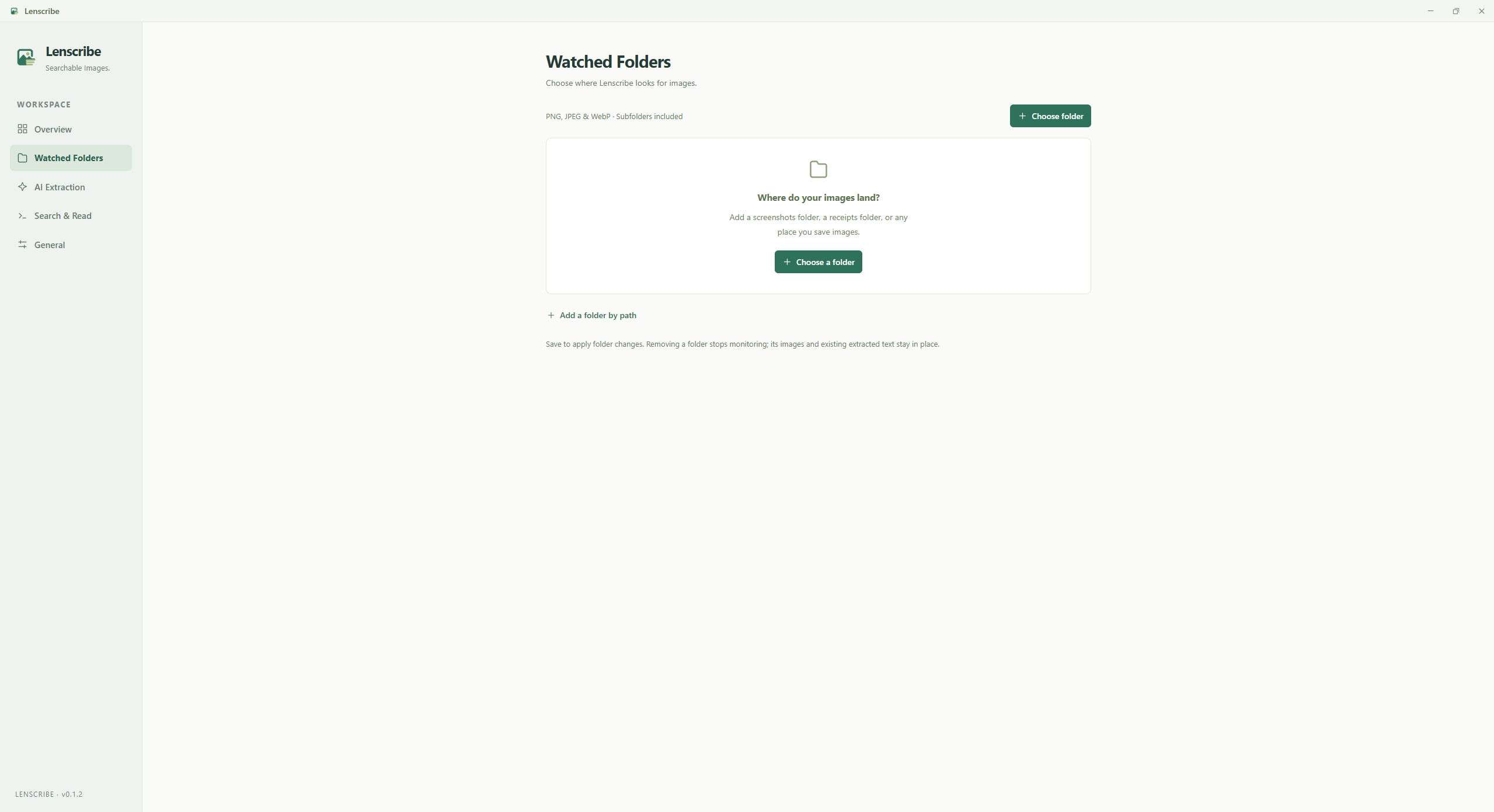
Choose a folder.
Open Watched Folders, add a folder, and save. Lenscribe includes its subfolders. Use Folder Rules to exclude paths or limit which image sizes are indexed.
Connect a vision model.
Open AI Extraction and choose a provider. Enter its API key if required, then use Fetch Models or enter an image-capable model ID manually.
Enable extraction.
Turn on Automatic text extraction and save. Lenscribe processes pending images and watches for new ones. Overview shows your progress.
Find what you remember.
Open Watched Folders → Inspect Files to search filenames and text, preview images, or edit a transcription. You can also search with your usual file tools.
Automatic extraction starts off disabled. Scanning alone indexes files and existing text without sending images to a model. Closing the settings window keeps Lenscribe working in the system tray.
Folders & files.
Lenscribe supports PNG, JPEG, and WebP. It watches your chosen folders and subfolders without moving your files into a new library. Symbolic links are not followed.
Exclude files you do not need.
Open Folder Rules → Exclude patterns. Add one pattern per line. Use / for folders, * for names, and ** for subfolders. A bare filename matches
at any depth.
temp/**
*-thumbnail.png
Excluded files leave the index and processing queue. Their image files and existing text stay in place. Including them again imports any existing Lenscribe text.
Indexing and extraction have separate limits.
Maximum image size (MiB) in Folder Rules controls indexing; 0 includes every size. Automatic extraction and previews have a separate 20 MiB per image limit. A model may impose its own limits.
Pause, resume, or keep it in the background.
General contains pause/resume, start-at-login, and appearance settings. Pausing stops watching and extraction while keeping pending work. Resuming scans for changes. Use Quit Lenscribe in the tray menu to stop the app completely.
How the text stays with the image.
Lenscribe uses end-of-file (EOF) steganography: it stores extracted text after the original image data, leaving the visible image unchanged. It appends a small header, the raw UTF-8 transcription, and a checksummed footer without re-encoding the image. Processing the same file again replaces Lenscribe’s own trailer.
- 01 · PRESERVEDOriginal imageEvery original byte stays intact
- 02 · APPENDEDHeaderMarker & image / settings identity
- 03 · APPENDEDUTF-8 textReadable transcription
- 04 · APPENDEDFooterLengths & payload checksum
Readable with your usual tools.
The saved text is intentionally readable and unencrypted, so ordinary file tools can search it even when Lenscribe is not running. Copying or sharing the file carries its saved text too. This uses the appended-data approach to steganography (PDF).
Compatibility depends on the image reader. Readers need to tolerate trailing data. Re-saving or re-encoding an image in another application may discard its appended text. Keep the processed file when you want to preserve its transcription.
PNG and WebP decoding are covered by the project’s tests; JPEG byte preservation is tested. See architecture and file format for the exact markers, validation, and write behavior.
Providers & vision models.
Choose your provider in AI Extraction. Use a model that accepts image input. A text-only model cannot transcribe your files.
| Provider | What to enter | Processing |
|---|---|---|
| OpenAI | API key + an image-capable model | Hosted |
| Anthropic | API key + an image-capable Claude model | Hosted |
| Google Gemini | API key + an image-capable Gemini model | Hosted |
| OpenRouter | API key + an image-capable model | Hosted |
| Groq | API key + an image-capable model | Hosted |
| xAI | API key + an image-capable Grok model | Hosted |
| Ollama | Server URL + an installed vision model | Your server |
| OpenAI compatible | Base URL + model ID; API key if required | Your endpoint |
Use a hosted provider.
Enter your API key, select a model with Fetch Models, and save. Hosted providers use their preset endpoints and may charge for API usage. A catalog entry marked unverified may not support images; use a known vision model or enter its exact ID manually.
Use a local model.
Run an image-capable model on your Ollama server, then select Ollama in
Lenscribe. Its default base URL is http://localhost:11434. For an
OpenAI-compatible server, use Custom / OpenAI Compatible; the default base
URL is http://localhost:1234/v1.
Enter the base URL without the chat or generation endpoint. Supply an API key only if your server requires one. Processing stays on your machine when the model server runs there.
Adjust extraction options
Extraction options lets you set the prompt, token limit, timeout,
concurrency, and request rate. Concurrency supports 1–8 images;
requests per minute supports 0–600, with 0 meaning unlimited.
Changed settings affect pending work. Existing successful text stays in place until you choose Reprocess. Review model output when accuracy matters.
Search & read.
Find images in Lenscribe.
Open Watched Folders → Inspect Files and search the selected folder. Matches include filenames and extracted text. Current source builds also match word prefixes and common typos automatically. Check your release notes for feature availability.
Choose a result to preview the image, read or edit its text, retry an error, or reprocess it with your current model.
Search every file with your usual tools.
The text is readable even when Lenscribe is not running. Run these commands from the folder you want to search. They search every file in that folder and its subfolders.
grep -ar "coffee" .-a treats image files as text; -r searches recursively. The . means the current folder.
Get-ChildItem -File -Recurse -Force |
  Select-String -Pattern "coffee" -Encoding utf8
File tools read the entire file, including binary image data and trailer markers. For clean extracted text and ranked results, use the local API.
Local search API.
Enable Search & Read → Local search API and save. The default address is http://127.0.0.1:47831. Port 0 chooses an available port; use the address
shown in Lenscribe.
Search filenames and extracted text.
curl -G --data-urlencode "q=coffee" \
  --data-urlencode "limit=20" \
  "http://127.0.0.1:47831/search"
Read only the text.
Replace 1 below with a file ID returned by search.
curl "http://127.0.0.1:47831/files/1/text"In Windows PowerShell, use curl.exe to call the curl executable explicitly.
Endpoints.
| Method & path | Returns |
|---|---|
GET/health | Readiness status and app version |
GET/folders | Indexed folders |
GET/folders/:id | Folder details, files, and Merkle root |
GET/files/:id | File details, including extracted text |
GET/files/:id/text | Only the extracted text, as plain UTF-8 |
GET/search?q=coffee | Ranked matches with text snippets |
GET/search/page?q=coffee | Matches plus a total count and fuzzy-match information |
Search parameters.
q- Required search text.
folderId- Optional folder ID to limit the search to one indexed folder.
limit- Results per request. Defaults to 20, with a maximum of 100.
offset- Results to skip. Defaults to 0.
fuzzy- Defaults to true. Use false to search literal substrings without fuzzy matching.
/search returns a list of matches. /search/page also returns total, fuzzyApplied, and any search notice.
Pagination and fuzzy parameters are described here for the current source; older releases
may differ.
The API is read-only and runs while Lenscribe is open in the background. It binds to IPv4 loopback, has no authentication, and does not enable browser CORS. Other processes on your computer can query it while it is enabled.
Data & privacy.
Your image files.
Lenscribe appends readable, unencrypted UTF-8 text after the original image bytes. Copying or sharing an image also copies its saved text.
Your model choice.
Images are sent to your selected provider only when extraction is enabled. Requests contain original image bytes without Lenscribe’s appended text.
Local storage.
settings.json and index.sqlite live in Tauri’s application data
directory. API keys are stored as plain text in settings.json. The database
stores filenames, extracted text, cached results, and processing state.
A local Ollama or compatible endpoint can keep model processing on your computer. A hosted provider receives your images under its own terms. Lenscribe does not require environment variables for API keys.
Moving or editing processed images.
Moving or backing up a processed image keeps its text with it. Compatibility depends on your image viewer accepting trailing data. Re-saving or re-encoding an image in another application may remove the appended text.
See how the text stays with the image for the file layout, checksums, and compatibility details.
Troubleshooting.
Start with the error shown in Lenscribe. These checks cover the most common issues.
My images stay pending.
Check that Automatic text extraction is enabled and saved, monitoring is not paused, and your selected model accepts images. Automatic extraction and previews support images up to 20 MiB. Review the error on the affected image for the next step.
I see an authentication or provider error.
Check the API key and exact model ID for the selected provider. Save any corrected settings, then use Retry extraction. Temporary rate limits, timeouts, and server errors retry automatically; authentication and endpoint errors need corrected settings or an explicit retry.
Some images are missing from my folder.
Check the file format, Folder Rules, size limit, path access, and reported scan issues. PNG, JPEG, and WebP are supported. Symbolic links are skipped. Excluding a file removes it from the index and queue without deleting it.
The local API cannot start.
Another process may be using the configured port. Choose a different port in Search & Read, or set it to 0 to let the operating system choose an available one. Save, then use the address shown by Lenscribe.
A watched folder is unavailable.
Reconnect the drive or restore access to the folder. Lenscribe retries unavailable folders every 30 seconds. Check filesystem permissions if the path exists but scanning still fails.
Switching models did not change processed text.
Changing settings affects pending work and keeps existing successful results. Open Watched Folders → Inspect Files and choose Reprocess for a fresh request with your current model. Use the file inspector to edit a transcription directly.
Lenscribe keeps running after I close the window.
Closing the settings window leaves folder watching and extraction running in the background. Reopen settings from the system tray. To stop the app completely, choose Quit Lenscribe from the tray menu. General also contains pause/resume and start-at-login settings.
Find your logs.
lenscribe.log records startup, watching, extraction, retries, and API activity, even
when the settings window is closed.
| Platform | Log location |
|---|---|
| Windows | %LOCALAPPDATA%\com.ssubedir.lenscribe\logs\lenscribe.log |
| macOS | ~/Library/Logs/com.ssubedir.lenscribe/lenscribe.log |
| Linux | $XDG_DATA_HOME/com.ssubedir.lenscribe/logs/lenscribe.logWhen XDG_DATA_HOME is unset:~/.local/share/com.ssubedir.lenscribe/logs/lenscribe.log |
Logs exclude API keys, prompts, image payloads, extracted text, and raw model request/response bodies. Diagnostic file paths can appear. For a bug report, include your OS, Lenscribe version, reproduction steps, and sanitized log lines.
Report an issue on GitHubBuild from source.
Lenscribe uses Tauri 2, Svelte/TypeScript, and a Rust core. Install the Bun version
specified in package.json, stable Rust, and the platform dependencies listed in
the development guide.
git clone https://github.com/ssubedir/lenscribe.git
cd lenscribe
bun install --frozen-lockfile
bun run tauri dev
To build the release executable without installers or signing updater artifacts, run bun run tauri build --no-bundle. The full development guide covers checks, the headless runner, logs, and releases.